|
Features
|
Android ICS
|
iOS 5
|
|
Google
Services
|
The instant account-based access you get to Gmail,
Google Maps, the contacts, the calendar, Latitude, and chat are great.
|
You can download Google apps from the App Store,
too. The Google Voice app has a better layout for iOS
but it's also slower and much less stable. |
|
Camera
Tools
|
Ice Cream Sandwich brings on a whole lot of new
photo tools, the most significant of which are the photo-editing tools in the
image gallery. They include red-eye reduction, straightening, and "hipster
filters," whatever those are. The camera app itself adds a useful panorama mode
that seamlessly creates a landscape still.
|
iOS 5 has great software image rendering, but photo
quality also requires the image sensor and camera lens
|
|
NFC
|
NFC (near-field communications) is becoming a big
deal in mobile. If you have an NFC-compatible phone, you'll be able to use the
on-board Google Wallet software right away to pay for purchases by tapping or
waving your phone near a compatible terminal .
|
No NFC for iOS 5 yet
|
|
Cloud
feature
|
Android has long enjoyed over-the-air OS updates,
and its online Android Market also takes advantage of over-the-air app
installation. Google Music is one big cloud feature
|
iCloud does over-the-air syncing from the device to
the cloud (no more USB connection to the computer!) and syncs content like apps,
music, and contacts, so you can later restore. You can also wirelessly edit
photos, manage e-mail folders, and create and delete calendars.
|
|
Voice Action
App
|
Android has also had its own voice actions app,
which can launch navigation, calls, texts, search, and more, at your command
|
‘Siri’ is the voice-triggered assistant with an
attitude that replaces the Voice Control app. ‘Siri' can create reminders,
search for directions, text people, call you a cab, and so on
|
|
Turn-by-turn voice
navigation
|
Google's turn-by-turn voice navigation for driving directions can effectively replace your in-car dash or GPS navigator--and possibly save you hundreds of dollars |
Integrated Google maps are great, but there's no
voice readout
|
Showing posts with label android. Show all posts
Showing posts with label android. Show all posts
Monday, May 7, 2012
Android ICS vs iOS 5


Thursday, March 15, 2012
Emulator keyboard mapping
Emulated Device Key | Keyboard Key |
Home | HOME |
Menu (left softkey) | F2 or Page-up button |
Star (right softkey) | Shift-F2 or Page Down |
Back | ESC |
Call/dial button | F3 |
Hangup/end call button | F4 |
Search | F5 |
Power button | F7 |
Audio volume up button | KEYPAD_PLUS, Ctrl-F5 |
Audio volume down button | KEYPAD_MINUS, Ctrl-F6 |
Camera button | Ctrl-KEYPAD_5, Ctrl-F3 |
Switch to previous layout orientation (for example, portrait, landscape) | KEYPAD_7, Ctrl-F11 |
Switch to next layout orientation (for example, portrait, landscape) | KEYPAD_9, Ctrl-F12 |
Toggle cell networking on/off | F8 |
Toggle code profiling | F9 (only with -trace startup option) |
Toggle fullscreen mode | Alt-Enter |
Toggle trackball mode | F6 |
Enter trackball mode temporarily (while key is pressed) | Delete |
DPad left/up/right/down | KEYPAD_4/8/6/2 |
DPad center click | KEYPAD_5 |
Onion alpha increase/decrease | KEYPAD_MULTIPLY(*) / KEYPAD_DIVIDE(/) |
Wednesday, February 8, 2012
Compatibility test on Android emulator based on different device configurations
Sample compatibility matrix:
Emulator based device configurations:
| Sno. | Module | Page name/ Funcationality | Motorola Droid razr | Samsung Epic |
| Resoulation:540*960 LCD Density:256 RAM:1024 Heap: | Resoulation:480*800 LCD Density:233 RAM:512 Heap:24 | |||
| 1 | Launch App | App Icon | YES | YES |
| 2 | Launch App | Splash screen | YES | YES |
| 3 | Launch App | Login Page | YES | YES |
| 4 | Launch App | Reset password page | YES | YES |
| 5 | Launch App | Login Page | YES | YES |
| 6 | Profile Screen | Create profile page | YES | YES |
| 7 | Profile Screen | Profile screen | YES | YES |
| 8 | Profile Screen | Edit Profile screen | YES | YES |
Emulator based device configurations:
| Motorola Droid razr | Samsung Epic | HTC Droid Incredible | HTC Inspire | HTC Desire HD | HTC Desire | Samsung Galaxy S2 | HTC Evo 4G | Samsung Galaxy S | HTC Wild Fire | LG Optmus ONE P500 | Samsung Glaxy Mini |
| Resoulation:540*960 LCD Density:256 RAM:1024 Heap: | Resoulation:480*800 LCD Density:233 RAM:512 Heap:24 | Resoulation:480 × 800 LCD Density:252 RAM:512 Heap:25 | Resoulation:480x800 LCD Density:217 RAM:768 Heap:24 | Resoulation:480*800 LCD Density:240 RAM:768 Heap:38 | Resoulation:480*800 LCD Density:240 RAM:576 Heap:24 | Resoulation:480*800 LCD Density:218 RAM:1024 Heap:64 | Resoulation:800×480 LCD Density:240 RAM:512 Heap:48 | Resoulation:800×480 LCD Density:233 RAM:512 Heap:48 | Resoulation:240*320 LCD Density: RAM: Heap: | Resoulation:320x480 LCD Density:160 RAM:512 Heap:24 | Resoulation: 240×320 LCD Density: RAM: 160 Heap:24 |
Wednesday, January 25, 2012
Robotium ... native android app automation framework
Automating Android Native Applications using Open Source Test Framework - ROBOTIUM
http://code.google.com/p/robotium/
ROBOTIUM Framework provides API’s to deal with various kinds of Widgets/UI , present in mobile applications developed using Android SDK.
About Robotium
Robotium is a UI Testing tool created by JAYWAY to make it easy to write powerful and robust automatic black-box test cases for Android applications.
Robotium has full support for Activities, Dialogs, Toasts, Menus and Context Menus. And simulates touching, clicks, typing, and other user actions relevant for Android applications.
How Robotium Uses Instrumentation feature provided in Android
Investigate interaction with UI
Pressing buttons, navigating menus
Features supported by Robotium
Runs on device/emulator
JUnit 3 compatible framework
Allows direct control of user interface
– Touches, Taps, Scrolling in lists
Can be started from Eclipse or command prompt
Automatic timing and delays
Automatically follows current Activity
Automatically finds Views
Automatically makes own decisions
when to scroll etc.
No modification to Android platform
Limitations
No Script Recorder
Tied to one app process
Needs initial Activity.
No approach for Configuration Management.
No Data Driven Testing and Test Data Management Approach
No Reporting capabilities
No Screenshot Capture
No Remote Execution
Android
About Android
Android is a software stack for mobile devices that includes an operating system, middleware and key applications.
Android's mobile operating system is based on the Linux kernel.
Google acquired Android Inc. in August, 2005, making Android Inc
Android has been available under a free software/open source license since October, 21 2008.
Android's mobile operating system is based on the Linux kernel.
Google acquired Android Inc. in August, 2005, making Android Inc
Android has been available under a free software/open source license since October, 21 2008.
Android Versions
Recent released versions of Android are:
2.0/2.1 (Eclair), which revamped the user interface and introduced HTML5 and Exchange ActiveSync 2.5 support.
2.2 (Froyo), which introduced speed improvements with JIT optimization and the Chrome V8 JavaScript engine, and added Wi-Fi hotspot tethering and Adobe Flash support
2.3 (Gingerbread), which refined the user interface, improved the soft keyboard and copy/paste features, and added support for Near Field Communication
3.0 (Honeycomb), a tablet-oriented release which supports larger screen devices and introduces many new user interface features, and supports multicore processors and hardware acceleration for graphics.
| Version name | Key features added | Android market share | Screen size support | API Level | Based on Linux kernel version | Release date | |
| Android 0.9 | 320x480 HVGA | 2008 Aug 18 | |||||
| Android 1.0 | Apple pie | 320x480 HVGA | 1 | 2008 Sep 23 | |||
| Android 1.1 | Banana bread | 320x480 HVGA | 2 | 2.6 | 2009 Feb 9 | ||
| Android 1.5 | Cupcake | Bluetooth A2DP, AVRCP support | 0.60% | 320x480 HVGA | 3 | 2.6.27 | 2009 Apr 30 |
| Soft-keyboard with text-prediction | |||||||
| Record/watch videos | |||||||
| Android 1.6 | Donut | Gesture framework | 1.10% | 800×480 WVGA | 4 | 2.6.29 | 2009 Sep 15 |
| Turn-by-turn navigation | |||||||
| Android 2.0 | Eclair | HTML | 800×480 WVGA | 5 | 2.6.29 | 2009 Oct 26 | |
| Digital zoom | |||||||
| Microsoft Exchange support | |||||||
| Bluetooth 2.1 | |||||||
| Live Wallpapers | |||||||
| Updated UI | |||||||
| Android 2.0.1 | Eclair | 800×480 WVGA | 6 | 2.6.29 | 2009 Dec 3 | ||
| Android 2.1 | Eclair | 8.5 % (2.0 - 2.1) | 800×480 WVGA | 7 | 2.6.29 | 2010 Jan 12 | |
| Android 2.2 | Froyo | Speed improvements | 30.40% | 800×480 WVGA | 8 | 2.6.32 | 2010 May 20 |
| JIT implementation | |||||||
| USB Tethering | |||||||
| Applications installation to the expandable memory | |||||||
| Upload file support in the browser | |||||||
| Animated GIFs | |||||||
| Android 2.3 | Gingerbread | Updated UI | 0.6 % (2.3 - 2.3.2) | 1366×768 WXGA | 9 | 2.6.35 | 2010 Dec 6 |
| WebM video playback capability | |||||||
| Improved copy/paste | |||||||
| Social networking features | |||||||
| Near Field Communication support | |||||||
| Native VoIP/SIP support | |||||||
| Video call support | |||||||
| Android 2.3.3 | Gingerbread | NFC API improvements (peer to peer communication...) | 10 | 2.6.35 | 2011 Feb 9 | ||
| Android 2.3.4 | Gingerbread | Open Accessory API | 10 | 2.6.35 | 2011 May 10 | ||
| Voice or video chat using Google Talk | |||||||
| Android 2.3.5 | Gingerbread | Improved network performance for the Nexus S 4G | 10 | 2.6.35 | 2011 Jul 25 | ||
| Fixed Bluetooth issues on the Samsung Galaxy S | |||||||
| Gmail app. improvements | |||||||
| Android 2.3.6 | Gingerbread | Voice search issue fixed | 10 | 2.6.35 | |||
| Android 2.3.7 | Gingerbread | Google Wallet support for the Nexus S 4G | 54.9 % (2.3.3 - 2.3.7) | 10 | 2.6.35 | ||
| Android 3.0 | Honeycomb | Multi core support | 0.10% | 11 | 2.6.36 | 2011 Feb 22 | |
| Better tablet support | |||||||
| Updated 3D UI | |||||||
| Google Talk video chat | |||||||
| Google eBooks | |||||||
| "Private browsing" | |||||||
| Android 3.1 | Honeycomb | UI improvements | 1.50% | 12 | 2.6.36 | 2011 May 10 | |
| Open Accessory API | |||||||
| USB host API | |||||||
| Mice, joysticks, gamepads... support | |||||||
| Resizable Home screen widgets | |||||||
| MTP notifications | |||||||
| RTP API for audio | |||||||
| Android 3.2 | Honeycomb | Optimizations for a wider range of tablets | 13 | 2.6.36 | 2011 Jul 15 | ||
| Compatibility display mode (zoom for fixed-sized apps) | |||||||
| Media sync from SD card | |||||||
| Android 3.2.1 | Honeycomb | Android Market updates including easier automatic updates | 1.7 % (3.2 - 3.2.1) | 13 | 2.6.36 | 2011 Sep 20 | |
| Google Books updates | |||||||
| Wi-Fi improvements | |||||||
| Chinese handwriting prediction improved | |||||||
| Android 3.2.2 | Honeycomb | Minor fixes | 13 | 2.6.36 | 2011 Sep 30 | ||
| Android 4.0.1 | Ice Cream Sandwich | Facial recognition (Face Unlock) | 14 | 2011 Oct 19 | |||
| UI use Hardware acceleration | |||||||
| Better voice recognition (dictating/Voice typing) | |||||||
| Web browser, allows up to 16 tabs | |||||||
| Updated launcher (customizable) | |||||||
| Android Beam app to exchange data through NFC | |||||||
| Resizeable widgets | |||||||
| Android 4.0.2 | Ice Cream Sandwich | Minor fixes | 0.3 % (4.0.1 - 4.0.2) | 14 | 2011 Nov 28 | ||
| Android 4.0.3 | Ice Cream Sandwich | Social stream API in Contacts provider to show updates associated to your contacts | 0.30% | ||||
| Video stabilization and QVGA video resolution API access | |||||||
| Accessibility API refinements for screen readers | |||||||
| Calendar provider updates |
Tuesday, January 24, 2012
Monitor performance using DDMS (Android)
Performance monitoring:
DDMS provides Threads, VMHeap, Allocation Tracker, Emulator control and other tabs to monitor application performance. The following sections describe how to use DDMS and the various tabs and panes that are part of the DDMS GUI
Examining thread information
The Threads tab in DDMS shows you the currently running threads for a selected process.

Heap and non-Heap memory
The device JVM memory consists of the following segments:
Viewing heap usage for a process
DDMS allows you to view how much heap memory process is using. This information is useful in tracking heap usage at a certain point of time during the execution of your application.
The Dalvik virtual machine can produce a complete dump of the contents of the virtual heap. This is very useful for debugging memory usage and looking for memory leaks.
To view heap usage for a process:

There are many types of objects that are identified by DVM which are categorized as below.
Allocation Tracker
In a performance-sensitive code path, such as the layout or drawing method of a view or the logic code of a game, any allocation comes at a price. After too many allocations, the garbage collector will kick in and stop your application to let it free some memory. Most of the time, garbage collections happen fast enough for you not to notice. However, if a collection happens while you are scrolling through a list of items or while you are trying to defeat a foe in a game, you may suddenly see a drop in performance/responsiveness of the application. It's not unusual for a garbage collection to take 100 to 200 ms. For comparison, a smooth animation needs to draw each frame in 16 to 33 ms. If the animation is suddenly interrupted for 10 frames, you can be certain that your users will notice.
Most of the time, garbage collection occurs because of tons of small, short-lived objects and some garbage collectors, like generational garbage collectors, can optimize the collection of these objects so that the application does not get interrupted too often. The Android garbage collector is unfortunately not able to perform such optimizations and the creation of short-lived objects in performance critical code paths is thus very costly for your application.
To help you avoid frequent garbage collections, the Android SDK ships with a very useful tool called allocation tracker. This tool is part of DDMS, which you must have already used for debugging purposes. To start using the allocation tracker, you must first launch the standalone version of DDMS, which can be found in the tools/ directory of the SDK. The version of DDMS included in the Eclipse plugin does not offer you ability to use the allocation tracker yet. Once DDMS is running, simply select your application process and then click the Allocation Tracker tab. In the new view, click Start Tracking and then use your application to make it execute the code paths you want to analyze. When you are ready, click Get Allocations. A list of allocated objects will be shown in the first table. By clicking on a line you can see, in the second table, the stack trace that led to the allocation. Not only you will know what type of object was allocated, but also in which thread, in which class, in which file and at which line.
File System
DDMS provides a File Explorer tab that allows you to view, copy, and delete files on the device. You can view this tab by going to the ‘Device’ menu and clicking on the ‘File Explorer’ tab. Using this feature the user can examine files that are created by your application or if you want to transfer files to and from the emulator/device to the local machine.
To work with an emulator or device's file system:
DDMS provides Threads, VMHeap, Allocation Tracker, Emulator control and other tabs to monitor application performance. The following sections describe how to use DDMS and the various tabs and panes that are part of the DDMS GUI
Examining thread information
The Threads tab in DDMS shows you the currently running threads for a selected process.
- Select the process that you want to examine the threads for.
- Click the Update Threads button.
- In the Threads tab, you can view the thread information for the selected process.
- “main” (see name column) thread is your applications process
- Click on refresh button to view class and method information.
- If Native = false, method/class is from application, else method/class is from Android OS.

Heap and non-Heap memory
The device JVM memory consists of the following segments:
- Heap Memory, which is the storage for Java objects
- Non-Heap Memory, which is used by Java to store loaded classes and other meta-data
- JVM code itself, JVM internal structures, loaded profiler agent code and data, etc.
Viewing heap usage for a process
DDMS allows you to view how much heap memory process is using. This information is useful in tracking heap usage at a certain point of time during the execution of your application.
The Dalvik virtual machine can produce a complete dump of the contents of the virtual heap. This is very useful for debugging memory usage and looking for memory leaks.
To view heap usage for a process:
- Select the process that you want to see the heap information for.
- Click the Show Heap Updates button to enable heap information for the process.
- In the VM Heap tab, click Cause GC to invoke garbage collection, which enables the collection of heap data. When the operation completes, you will see a group of object types and the memory that has been allocated for each type. You can click Cause GC again to refresh the data.
- Click on an object type in the list to see a bar graph that shows the number of objects allocated for a particular memory size in bytes.

There are many types of objects that are identified by DVM which are categorized as below.
- Class Objects are instances of Class, e.g. what you'd get from java.lang.String.class or myObject.getClass().
- The arrays are binned by size. For example, 2-byte arrays could be short[] or char[]. 4-byte arrays include float[], int[], and all Object[].
- A non-Java Object is a piece of memory that isn't actually accessible from code written in Java. Essentially it's a blob of stuff that got stuck on the virtual heap but has no meaning to interpreted code. Shouldn't be much of that.
- Data Objects are objects that don't fall into one of the special categories. ArrayList, HashMap, whatever.
Allocation Tracker
In a performance-sensitive code path, such as the layout or drawing method of a view or the logic code of a game, any allocation comes at a price. After too many allocations, the garbage collector will kick in and stop your application to let it free some memory. Most of the time, garbage collections happen fast enough for you not to notice. However, if a collection happens while you are scrolling through a list of items or while you are trying to defeat a foe in a game, you may suddenly see a drop in performance/responsiveness of the application. It's not unusual for a garbage collection to take 100 to 200 ms. For comparison, a smooth animation needs to draw each frame in 16 to 33 ms. If the animation is suddenly interrupted for 10 frames, you can be certain that your users will notice.
Most of the time, garbage collection occurs because of tons of small, short-lived objects and some garbage collectors, like generational garbage collectors, can optimize the collection of these objects so that the application does not get interrupted too often. The Android garbage collector is unfortunately not able to perform such optimizations and the creation of short-lived objects in performance critical code paths is thus very costly for your application.
To help you avoid frequent garbage collections, the Android SDK ships with a very useful tool called allocation tracker. This tool is part of DDMS, which you must have already used for debugging purposes. To start using the allocation tracker, you must first launch the standalone version of DDMS, which can be found in the tools/ directory of the SDK. The version of DDMS included in the Eclipse plugin does not offer you ability to use the allocation tracker yet. Once DDMS is running, simply select your application process and then click the Allocation Tracker tab. In the new view, click Start Tracking and then use your application to make it execute the code paths you want to analyze. When you are ready, click Get Allocations. A list of allocated objects will be shown in the first table. By clicking on a line you can see, in the second table, the stack trace that led to the allocation. Not only you will know what type of object was allocated, but also in which thread, in which class, in which file and at which line.
File System
DDMS provides a File Explorer tab that allows you to view, copy, and delete files on the device. You can view this tab by going to the ‘Device’ menu and clicking on the ‘File Explorer’ tab. Using this feature the user can examine files that are created by your application or if you want to transfer files to and from the emulator/device to the local machine.
To work with an emulator or device's file system:
- In the File explorer tab, select the file that you want ot view.
- To copy a file from the device/emulator, locate the file in the File Explorer and click the Pull file button.
- To copy a file to the device/emulator, click the Push file button on the File Explorer tab.

Debugging with DDMS (Android)
This topic explains the usage of DDMS tool provided by android SDK for debugging an android application and monitoring it.
Android – DDMS (Dalvik Debug Monitor Server)
Android SDK ships with a debugging tool called the Dalvik Debug Monitor Server (DDMS), which provides:- port-forwarding services
- screen capture on the device
- thread and heap information on the device
- logcat
- process
- radio state information
- incoming call and SMS spoofing
- location data spoofing
Run DDMS
To run DDMS we need to execute the bat file that is present in the tools folder of the Android SDK.
Or, From the command line: type ddms (or ./ddms on Mac/Linux) from the tools/ directory.
Note: You need to set the tools folder path to ‘PATH’ environment variable.
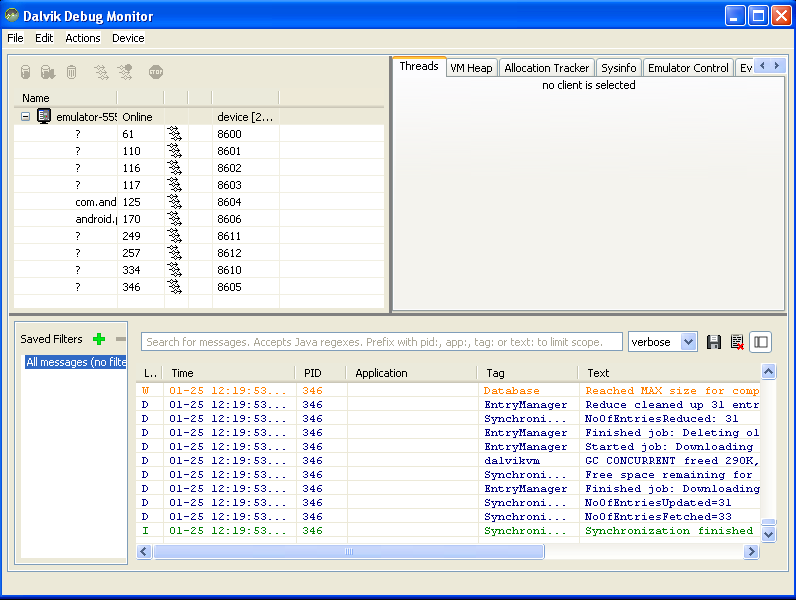
The left pane displays all the application processes which are running on the device. Apart from that we can also get to know the process id as well the port on which the process is running. Selecting a particular process will allow us to monitor the application using the features which are present on the right side of the window.
How DDMS Interacts with a Debugger
On Android, every application runs in its own process, each of which runs in its own virtual machine (DVM). Each VM exposes a unique port that a debugger can attach to.
When DDMS starts, it connects to adb.
Android Debug Bridge (ADB)
adb is a versatile tool lets you manage the state of an emulator instance or Android-powered device.
- Manage the state of an emulator or device
- Run shell commands on a device
- Manage port forwarding on an emulator or device
- Copy files to/from an emulator or device
iOS Human interface guidelines for testing
Refer to: http://developer.apple.com/library/ios/#documentation/UserExperience/Conceptual/MobileHIG/Introduction/Introduction.html
PDF downloadable at: http://search-ebooks.eu/i/ios-human-interface-guidelines
Following is the checklist made from guidelines for iPhone application:
PDF downloadable at: http://search-ebooks.eu/i/ios-human-interface-guidelines
Following is the checklist made from guidelines for iPhone application:
| iOS | Guideline |
| 1.Platform Characteristics | |
| The Display Is Paramount, Regardless of Its Size(The pixel size for image mentioned is 640 * 960 ) | |
| The comfortable minimum size of tappable UI elements is 44 x 44 points. | |
| Device Orientation Can Change | |
| Apps Respond to Gestures, Not Clicks(Tap,Drag,Flick,Swipe,Pinch,Double Tap,Touch and hold,Shake) | |
| People Interact with One App at a Time | |
| Multitasking is available on certain devices running iOS 4 and later. | |
| Preferences Are Available in Settings.(Preferences in the Settings app are of the “set once and rarely change” type) | |
| Onscreen User Help Is Minimal | |
| Most iOS Apps Have a Single Window | |
| Two Types of Software Run in iOS | |
| Safari on iOS Provides the Web Interface | |
| 2.Human Interface Principles | |
| Aesthetic Integrity | |
| Consistency 1)Does it use system-provided controls, views, and icons correctly? 2)Does it incorporate device features in a reliable way? 3)Does text use uniform terminology and style? 4)Do the same icons always mean the same thing? Can people predict what will happen when they perform the same action in different places? 5)Do custom UI elements look and behave the same throughout the app? | |
| Direct Manipulation | |
| Feedback | |
| Metaphors | |
| User Control | |
| 3.App Design Strategies | |
| Controls should look tappable. | |
| App structure should be clean and easy to navigate | |
| User feedback should be subtle, but clear. | |
| Mold the UI of each app version to the device it runs on. | |
| Adapt art to the screen size. | |
| Preserve the primary functionality of your app, regardless of the device it runs on. | |
| Go beyond the default. | |
| Focus your app. | |
| Make sure your app lets people do something. | |
| Design for touch. | |
| Let people scroll. | |
| Relocate the homepage icon. | |
| Always have a reason for customization. | |
| As much as possible, avoid increasing the user’s cognitive burden. | |
| Be internally consistent. | |
| Always defer to the content. | |
| Think twice before you redesign a standard control. | |
| Be Sure to thoroughly user-test custom UI elements | |
| Create Prototype for User test | |
| 4.Case Studies: Transitioning to iOS | |
| From Mail on the Desktop to Mail on iphone | |
| From Keynote on the Desktop to Keynote on ipad | |
| From Mail on the iPhone to Mail on iPad | |
| From a Desktop Browser to Safari on iOS | |
| 5.User Experience Guidelines | |
| Focus on the Primary Tasks | |
| Elevate the Content that people care about | |
| Think Top Down | |
| Give People a Logical Path to Follow | |
| Make Usage Easy and Obvious | |
| User user-centric Terminology | |
| Minimize the effort Required for user input | |
| Downplay File-Hanling operations | |
| Enable Collaboration and connectedness | |
| De-emphaise Settings | |
| Brand appropriately | |
| Make Search Quick and Rewarding | |
| Entice and inform with a Well-Written Description | |
| Be Succinct | |
| User UI Elements consistently | |
| Consider Adding Physicality and Realism | |
| Delight people with stunning graphics | |
| Handle Orientation Changes | |
| Make Targets Fiingertip size | |
| Use subtle Animation to communicate | |
| Support gestures appropriately | |
| Ask people to save only when necessary | |
| Make modal tasks occasional and simple | |
| Start instantly | |
| Always be prepared to stop | |
| Don’t quit programmatically | |
| If Necessary,Display Licence Agreemenr or Diclaimer | |
| 6.iOS Technology Usage Guidelines | |
| iCloud Storage | |
| Multitasking | |
| Notification Center | |
| Printing | |
| iAd Rich Media Ads | |
| Quick Look Document Preview | |
| Sound | |
| VoiceOver and Accessibility | |
| Edit Menu | |
| Undo and Redo | |
| Keyboards and Input Views | |
| Location Services | |
| 7.iOS UI Element Usage Guidelines | |
| Bars | |
| The Status Bar | |
| Navigation Bar | |
| Toolbar | |
| Tab Bar | |
| Content Views | |
| Popover (iPad Only) | |
| Split View (iPad Only) | |
| Table View | |
| Text View | |
| Web View | |
| Container View Controller | |
| Alerts, Action Sheets, and Modal Views | |
| Alert | |
| Action Sheet | |
| Modal View | |
| Controls | |
| Activity Indicator | |
| Date and Time Picker | |
| Detail Disclosure Button | |
| Info Button | |
| Label | |
| Network Activity Indicator | |
| Page Indicator | |
| Picker | |
| Progress View | |
| Rounded Rectangle Button | |
| Scope Bar | |
| Search Bar | |
| Segmented Control | |
| Slider | |
| Stepper | |
| Switch | |
| Text Field | |
| System-Provided Buttons and Icons | |
| Standard Buttons for Use in Toolbars and Navigation Bars | |
| Standard Icons for Use in Tab Bars | |
| Standard Buttons for Use in Table Rows and Other UI Elements | |
| 8.Custom Icon and Image Creation Guidelines | |
| Application Icons[57 x 57 pixels(normal resolution) 114 x 114 pixels(high resolution)] | |
| App store Icons (required for all apps)[512 x 512 pixels] | |
| Launch Images(required for all apps)[320 x 480 pixels(normal resolution) and 640 x 960 pixels(high resolution)] | |
| Small Icons(recommended)[29 x 29 pixels 58 x 58 pixels(high resolution)] | |
| Document Icons(recommended for custom document types)[22 x 29 pixels 44 x 58 pixels(high resolution)] | |
| Toolbar and navigation bar icon (optional)[Approximately 20 x 20 Approximately 40 x 40(high resolution)] | |
| Tab bar icon (optional)[Approximately 30 x 30 Approximately 60 x 60 (high resolution)] | |
| Newsstand icon for the App Store (required for Newsstand apps) | |
Subscribe to:
Posts (Atom)